
So you’re looking at an Epson solvent printer — or maybe you’ve already pulled the trigger and it’s on its way. Either way, this is an exciting investment. For what these printers cost, the value they bring to your business is truly exponential. But excitement aside, there are a few critical things you need to have sorted out before that printer arrives — or you could be in for a frustrating (and expensive) surprise.
At IT Supplies, we don’t just sell Epson solvent printers — we install them. Our team has completed countless installations, and we’ve seen firsthand how a small miscommunication can turn into a major headache. So we put together this guide (and the video below!) to walk you through everything you need to know before your printer lands.
Watch the Full Video Walkthrough
1. Know Your Space — and How the Printer Gets Into It
This one catches more people off guard than you’d expect, so let’s start here.
Epson solvent printers are big machines. We’re talking over 100 inches long and about 34 inches wide when fully assembled. And they don’t arrive that way — they come delivered on a pallet inside a large wooden crate that measures approximately 110 inches long by 45 inches wide. That box is not going through a standard doorway.
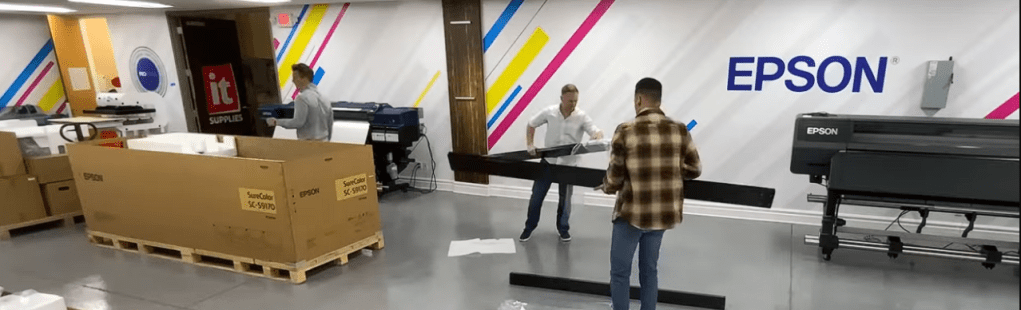
Before your delivery day, work through these questions:
- Do you have a loading dock? If not, you’ll need to request a lift gate on the delivery truck. Don’t assume — confirm this when scheduling.
- What’s the path from the truck to the final install location? Think through every doorway, hallway, turn, and potential obstacle. Are there stairs? Low ceilings? Tight corners?
- How many people will be on-site? We recommend at least 4 helpers for any heavy lifting involved in moving and positioning the printer.
Depending on the model, the printer may need to be unboxed before it can be moved into position. The S71, for example, requires you to assemble the base first, place the unit on top, and then install the heater — so the process is more involved than simply rolling it off a pallet. Every model is different, and knowing what to expect in advance will save you significant time and stress on installation day.
2. Make Sure Your Ink Arrives on Time
This may seem obvious, but it’s one of the most common installation delays we see — and it’s completely avoidable.
Here’s what you need to know: the S7170 does not come with ink. If you’re purchasing this model, your ink needs to be ordered separately and — critically — it needs to arrive before or at the same time as the printer itself.
The good news? The S81 and S91 both come with a full set of ink included, so if you’re going with one of those models, you’re covered.
Without ink on-site, we can assemble the printer, but we can’t get it running, test it, or walk you through your actual production workflow. Don’t let a missing ink shipment delay your installation day.
3. Have Your Media Ready
Same story as the ink — media ships separately and needs to be on-site for installation day.
This is actually a point worth emphasizing: don’t treat the installation as just a “turn it on and run a test print” moment. Our technicians are there to run your printer through your actual workflow — your media, your files, your output. We want to make sure the printer is producing your product the way you want it, not just spitting out a generic test sheet.
To do that, we need something to print on. Make sure at least one roll of your preferred media is ready and waiting when our team arrives.
4. Understand the Software and Computer Requirements
Epson’s EdgePrint software is compatible with both Mac and PC — so you have flexibility there. However, the one-year license of Onyx Go that comes bundled with your printer only works on Windows PCs. If you’re a Mac-only shop, this is something you’ll want to plan around ahead of time.
Also, if you’re already running a different RIP software or design program (Adobe Illustrator, CorelDRAW, Wasatch, etc.), let us know before installation. Our technicians can help make sure your existing tools are talking to the new printer correctly so your workflow is fully dialed in from day one — not day five.
5. Check Your Electrical Setup
Here’s the good news: Epson solvent printers plug into two standard 110V outlets. No electrician required. This is a big deal compared to some competing wide-format equipment that demands dedicated wiring and costly electrical work.
That said, there’s one important caveat — amperage.
The spec sheet lists 10–12 amps, but we recommend having at least 15-amp circuits available, and 20-amp is ideal. Why? When the heaters kick on, there’s a power surge. If your circuits are running near capacity — especially if you have more than one printer operating — you’re going to start tripping breakers. Higher amperage circuits give you the headroom to run smoothly without interruption.
Check your electrical panel before installation day. It’s a simple step that saves a lot of frustration down the road.
Bonus Tip: Tell Us About Your Other Equipment
If you have other printers, cutters, plotters, or finishing equipment on-site, mention it when you’re scheduling your installation. Our technicians love nothing more than showing up prepared to optimize your entire workflow — not just plug in one machine. If we can get everything talking to each other during the same visit, that’s a huge win for your productivity.
The Bottom Line
A successful Epson solvent printer installation really comes down to one thing: communication. If you’ve thought through how the printer is getting in the door, confirmed your ink and media will be on-site, checked your computer setup, and verified your electrical situation — you’re in great shape. Our team handles the rest.
Have questions before your printer arrives? Don’t hesitate to reach out. You can also browse our full selection of Epson solvent printers at IT Supplies to compare models and find the right fit for your business.
IT Supplies is your one-stop shop for everything you need to achieve the perfect print. We partner with top manufacturers to bring you the best in printing technology, including Eco-Solvent, Latex, UV, and Aqueous printers from EPSON, HP, and Canon. Our lineup also features a wide selection of Dye-Sublimation, DTF, and DTG printers from EPSON and HP. Explore our full range at www.itsupplies.com or by giving us a call at 1-800-771-9665!
 IT Supplies Blog