

Your printer’s printhead is one of its most expensive and critical components. When it starts to fail, you could face clogged nozzles, poor print quality, production delays, and a costly replacement bill. The frustrating part? Many common causes of printhead damage develop gradually, often without any obvious warning signs.
The good news is that many printhead problems can be reduced or prevented with the right maintenance routine. Environmental conditions, printer inactivity, worn maintenance components, ink selection, and improper media handling can all affect printhead performance.
At IT Supplies, we’ve seen how seemingly minor oversights can turn into expensive printer problems. In this guide, we’ll explain five common causes of printhead damage and share practical printhead maintenance tips to help protect your investment, maintain consistent print quality, and keep your business running.
1. Low Humidity in Your Print Room
Humidity is an often-overlooked factor in printhead maintenance. If your print room becomes too dry, particularly during winter when indoor heating is running, ink can dry more quickly around the printhead nozzles. Over time, dried ink can contribute to clogged nozzles, inconsistent ink flow, and missing lines in your prints.
Inkjet printheads rely on extremely small nozzles to deliver ink accurately onto media. When ink dries around these openings, the printer may struggle to produce consistent results. A minor clog might respond to an appropriate cleaning cycle, but repeated drying can make recovery more difficult and potentially contribute to permanent nozzle damage.

How to Prevent Printhead Damage From Dry Air
Start by monitoring the relative humidity in your print room. A simple digital hygrometer can help you understand whether your environment is becoming too dry. The video accompanying this article references a humidity range of 40–60%; however, your printer’s specific operating and storage requirements should always take priority.
If humidity regularly falls below the manufacturer’s recommended range, consider using a humidifier to help stabilize the environment. Position and operate the equipment safely, and avoid creating condensation or introducing excessive moisture around your printer, media, and electronics.
Make humidity checks part of your regular maintenance routine, especially during seasonal changes. Consistent environmental conditions can help reduce ink-drying risks and support more reliable printing.
Printhead protection checklist:
- Monitor relative humidity with a digital hygrometer.
- Follow the environmental specifications for your printer.
- Consider a humidifier if your print room is consistently too dry.
- Avoid condensation and excessive moisture.
- Investigate recurring nozzle clogs rather than assuming humidity is the only cause.
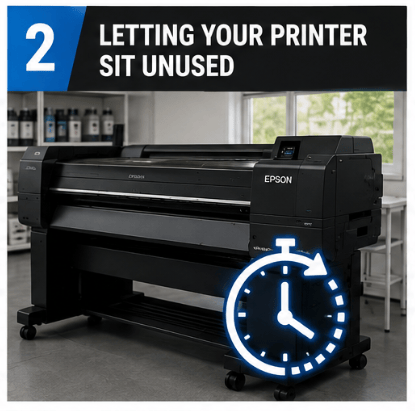
2. Letting Your Printer Sit Unused
An idle printer may seem harmless, but leaving an inkjet printer unused for extended periods can increase the risk of clogged nozzles and ink-related maintenance problems. When ink remains in the printhead without sufficient circulation or maintenance, it can begin to dry or accumulate in ways that interfere with normal printing.
This can be particularly important for printers that use white ink. White ink formulations often contain relatively heavy pigments that can settle over time, making appropriate circulation, agitation, and maintenance procedures especially important. The exact requirements vary by printer and ink system.
One common misconception is that turning off a printer for the weekend is always the best way to protect it. Some printers perform automatic maintenance routines while powered on, helping maintain the printhead and ink delivery system. Turning off or unplugging a machine may prevent those routines from running. However, the correct power-down procedure depends on the model, so always follow the manufacturer’s instructions.
How to Maintain a Printer That Isn’t Used Every Day
If your printer supports automatic maintenance while powered on, keep it in the recommended operating state and ensure the required ink and maintenance supplies are available. Do not assume that every printer should remain on indefinitely; some models have specific shutdown, storage, or vacation procedures.
When you know production will be slow, plan ahead. Check the nozzle pattern, follow the manufacturer’s prescribed idle-period maintenance process, and print a small test job when appropriate. For white ink systems, perform any required ink circulation or agitation procedures specified by the manufacturer.
A few minutes of preventive maintenance can help you identify developing problems before an important production run. If your printer will be unused for an extended period, consult its manual or technical support team rather than improvising a storage routine.
Printhead protection checklist:
- Follow your printer’s recommended power and standby settings.
- Keep required ink and maintenance supplies available.
- Follow specified circulation or agitation procedures for white ink.
- Perform nozzle checks at the recommended intervals.
- Use the manufacturer’s procedure for extended downtime.
3. A Worn or Failing Capping Station
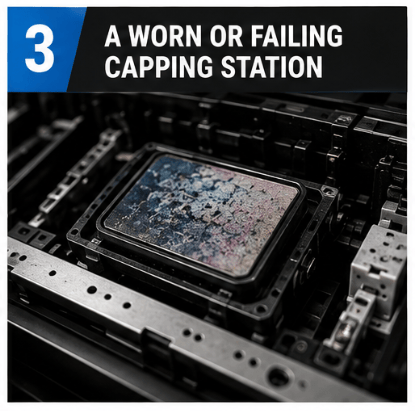
The capping station is a small component that plays a major role in preventing printhead clogs. When an inkjet printer is not actively printing, the printhead typically returns to a designated parking position, where a cap helps protect the nozzle area from air exposure and contamination.
A properly functioning cap helps maintain a suitable environment around the printhead between jobs. If the cap becomes worn, contaminated, cracked, or unable to form an effective seal, the nozzles may become more exposed to air. This can contribute to ink drying and recurring nozzle problems.
The challenge is that a failing capping station may not be immediately obvious. You might maintain the correct room humidity, run regular jobs, and use the recommended ink, yet still experience persistent clogs. In those circumstances, the capping station and other maintenance components deserve attention.
How to Maintain Your Printer’s Capping Station
Start by understanding how your particular printer is designed. Some models incorporate capping components into a replaceable maintenance cartridge, while others use a separate capping station that requires inspection, cleaning, and eventual replacement.
Follow the manufacturer’s service instructions when cleaning or inspecting the cap. Ink residue and debris can interfere with sealing, but using inappropriate cleaning products or tools can damage delicate components. Avoid touching the nozzle plate or applying unnecessary pressure to the printhead.
If nozzle clogs keep returning despite proper maintenance, ask a qualified technician to inspect the capping station, wiper, suction system, and related components. Replacing a worn maintenance part at the right time may help prevent more expensive printhead problems.
For model-specific guidance, contact IT Supplies at techs@itsupplies.com.
Printhead protection checklist:
- Learn how your printer’s capping station works.
- Inspect and clean components according to manufacturer instructions.
- Replace worn caps or maintenance cartridges as required.
- Watch for recurring nozzle clogs or ineffective maintenance cycles.
- Seek technical assistance when the cause of a clog is unclear.
4. Using Incompatible or Unapproved Third-Party Ink
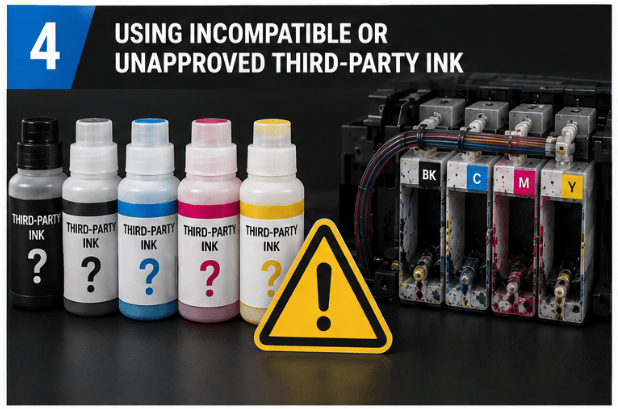
Ink is a significant ongoing expense for many print businesses, so it’s understandable that lower-priced alternatives are attractive. However, the purchase price alone doesn’t tell the whole story. The ink must also be compatible with the printer’s printhead, ink delivery system, and intended application.
Printer manufacturers formulate inks to work with particular printing technologies. Relevant properties can include viscosity, surface tension, chemical compatibility, pigment dispersion, and drying behavior. If an ink differs significantly from what the printer is designed to use, it may affect how droplets form, how ink flows through the system, and how reliably the printhead operates.
Incompatible or poorly controlled ink can increase the risk of print-quality problems, deposits, clogging, and damage to components. Pigment-based inks may also require appropriate suspension and handling. That doesn’t mean every third-party ink will damage a printhead; compatibility and quality vary by product. The important consideration is whether the ink is approved, properly formulated, and supported for your specific machine.
How to Reduce Ink Costs Without Putting Your Printhead at Risk
Before switching ink, check your printer manufacturer’s requirements and warranty conditions. Consider the supplier’s quality controls, compatibility documentation, technical support, and track record. A lower-cost ink that causes downtime or requires additional maintenance may not deliver the savings you expected.
There are other ways to improve your ink budget. Review your media profiles and print settings to ensure they deliver the color quality your customers require without applying more ink than necessary. Appropriate profiling can help optimize ink usage, although the savings depend on the printer, media, artwork, and production requirements.
At IT Supplies, we can help you explore pricing on genuine OEM ink and review your media profiles for potential efficiency improvements. If ink costs are putting pressure on your margins, speak with our team before making a change that could put an expensive printhead at risk.
Printhead protection checklist:
- Verify ink compatibility with your specific printer model.
- Review manufacturer recommendations and warranty conditions.
- Evaluate ink quality and supplier support, not just price.
- Optimize media profiles and print settings where appropriate.
- Compare total operating costs, including maintenance and downtime.
5. Printhead Strikes From Media
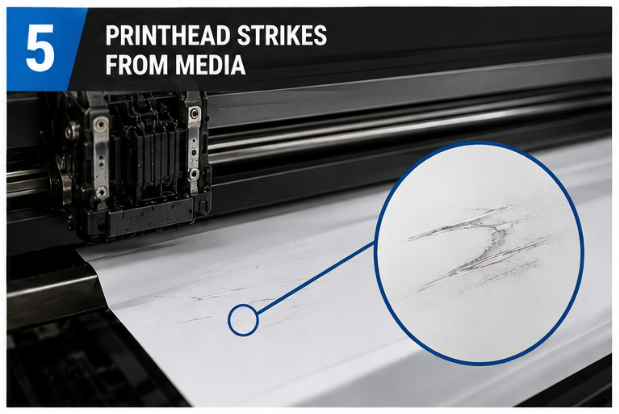
Unlike problems that develop gradually, a printhead strike can cause damage in a single incident. It happens when the printhead contacts the media or another obstruction as the printer moves across the print surface.
Inkjet printheads operate with limited clearance above the media. If a sheet curls upward, material wrinkles, a bubble forms, or the media is loaded at an incorrect height, the printhead can collide with the raised area. Depending on the severity of the impact, the incident may damage the nozzle plate, affect alignment, or require professional service.
Incorrect media settings can increase the risk. A platen gap or head-height setting that works for one material may be unsuitable for a thicker substrate. Excessive heater settings can also contribute to media deformation in some applications. Even a small raised edge can become a problem when clearance is limited.
How to Prevent Printhead Strikes
Before starting a job, confirm that the loaded media is compatible with the printer and that the head height or platen gap is set appropriately. Do not rely on a single setting for every material. When using a new, unusually thick, or unfamiliar substrate, take extra care to verify clearance and follow the manufacturer’s loading instructions.
Inspect media for curled corners, wrinkles, bubbles, uneven surfaces, and other obstructions. Use media edge guards as directed by the manufacturer, and set heaters to suitable levels for the media and application. If your printer’s operating instructions recommend unloading media during extended periods of inactivity, follow that procedure rather than leaving material in place unnecessarily.
If you hear or suspect a head strike, stop the job and follow the manufacturer’s inspection and recovery procedure. Avoid repeatedly restarting the printer without checking for obstructions or damage. Some incidents may be recoverable, but continuing to print with a damaged nozzle plate or misaligned components can create further problems.
Printhead protection checklist:
- Set head height or platen gap for the material being printed.
- Check for curled edges, wrinkles, bubbles, and raised areas.
- Follow appropriate heater settings to reduce media deformation.
- Use edge guards and loading procedures as recommended.
- Stop and inspect the printer if a collision occurs.
A Simple Printhead Maintenance Routine
The best way to protect your printhead is to make preventive maintenance part of your production routine. Small checks can help you catch environmental problems, maintenance-component wear, and media issues before they interrupt an important job.
Use the following schedule as a starting point, adjusting it to your printer manufacturer’s recommendations and actual production conditions.
Daily or Before Each Production Run
- Check the media for curl, wrinkles, and obstructions.
- Confirm the correct media settings and printhead clearance.
- Check the printer for maintenance alerts or visible issues.
- Perform nozzle checks when recommended or when print quality changes.
- Confirm that the printing environment is within the specified limits.
Weekly or During Slow Production Periods
- Review room humidity and temperature.
- Check for recurring nozzle problems or unusual print-quality changes.
- Confirm that required ink and maintenance supplies are available.
- Follow the recommended maintenance routine if the printer is used infrequently.
- Review white ink circulation or agitation requirements, if applicable.
At Manufacturer-Recommended Service Intervals
- Inspect or replace capping stations and maintenance cartridges as directed.
- Service other maintenance components according to the printer’s schedule.
- Review ink compatibility and media settings if recurring problems develop.
- Arrange qualified service when symptoms persist or mechanical damage is suspected.
Remember that this schedule is a general guide, not a replacement for the service manual. Different printers have different maintenance requirements, so the manufacturer’s instructions should determine the final routine.
Frequently Asked Questions About Printhead Damage
1. What causes printheads to fail?
Common causes include dried ink and clogged nozzles, unsuitable environmental conditions, inadequate maintenance during inactivity, worn capping components, incompatible ink, and physical damage from media collisions. The actual cause depends on the printer, ink system, and operating conditions.
2. What humidity should a print room maintain?
The video references 40–60% relative humidity as a target range. Always confirm the recommended operating conditions for your particular printer, ink, and media. Avoid both excessively dry conditions and condensation-producing moisture.
3. Should I leave my printer on when I’m not using it?
Some inkjet printers need to remain powered on to perform automatic maintenance, while others have specific shutdown or storage procedures. Follow your model’s instructions, especially before weekends, holidays, or extended production breaks.
4. Can a clogged printhead be repaired?
Some clogs can be cleared using the manufacturer’s approved cleaning procedure. Others may persist because of dried ink, a failing capping station, ink-system problems, or physical damage. Repeated cleaning cycles are not always the answer and can consume ink or maintenance supplies.
5. Can third-party ink damage a printhead?
Incompatible or poorly formulated ink can increase the risk of clogging, deposits, chemical incompatibility, and other problems. Not all third-party inks are the same, so check compatibility, quality documentation, manufacturer requirements, and warranty terms before switching.
6. What is a printhead strike?
A printhead strike occurs when the printhead collides with media or another obstruction. Common causes include curled edges, wrinkles, bubbles, unsuitable media height settings, and material deformation. Depending on the impact, the damage may be repairable or permanent.
7. How can I reduce printhead replacement costs?
Focus on preventive maintenance, correct environmental conditions, appropriate ink, regular checks, and proper media setup. These steps can reduce avoidable risks, although no maintenance routine can guarantee that a printhead will never fail.
Watch the Video: 5 Things Killing Your Printhead
Prefer to watch Andy explain these common printhead problems? View the original IT Supplies video for a practical walkthrough of the five causes and how to help prevent them.
Watch 5 Things Killing Your Printhead (And How to Stop Them) on YouTube
Protect Your Printhead With Help From IT Supplies
Your printhead is too important to leave its health to chance. Managing humidity, following the right maintenance routine, checking capping components, choosing compatible ink, and preventing media strikes can all help reduce the risk of costly printing problems.
If you’re experiencing recurring clogs, inconsistent print quality, or other printhead issues, the IT Supplies team can help you identify the next steps for your specific printer.
Email techs@itsupplies.com for help with printhead maintenance, ink compatibility, or printer care. If you’re looking for ways to lower ink costs, ask us about pricing on genuine OEM ink and opportunities to optimize your media profiles.
A little preventive maintenance today can help you get more reliable performance from the printer you already own!
IT Supplies is your one-stop shop for everything you need to achieve the perfect print. We partner with top manufacturers to bring you the best in printing technology, including Eco-Solvent, Latex, UV, and Aqueous printers from EPSON, HP, and Canon. Our lineup also features a wide selection of Dye-Sublimation, DTF, and DTG printers from EPSON and HP. Explore our full range at www.itsupplies.com or by giving us a call at 1-800-771-9665!

