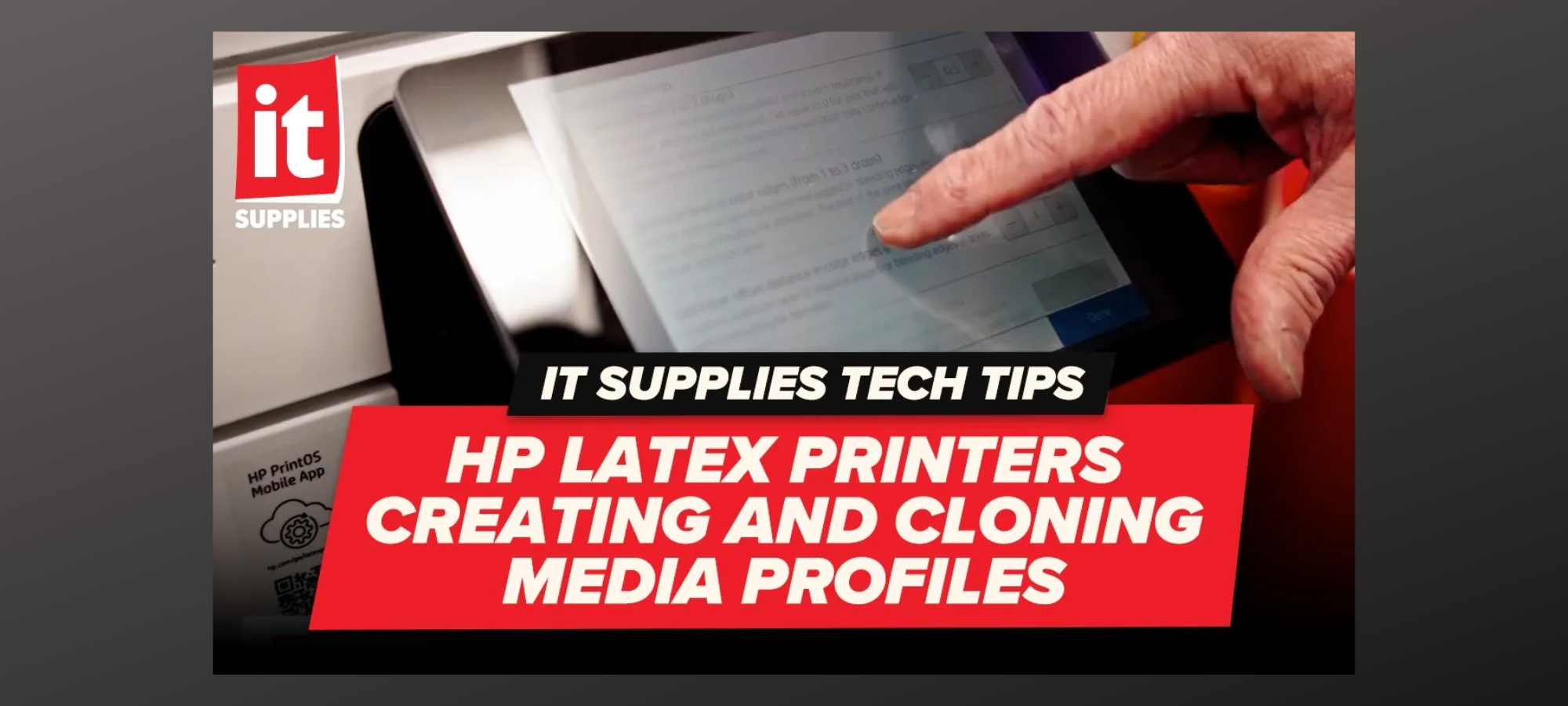

When working with an HP Latex printer, having the correct media profile can make a major difference in print quality, color accuracy, and overall production efficiency. Every substrate behaves differently, and using the right settings ensures your printer is optimized for the material you are running.
In this blog, we’ll walk through how to create and clone media profiles on HP Latex printers. The process allows you to duplicate existing substrate settings, customize them for your specific application, and fine-tune important options like curing temperature, optimizer levels, and overcoat settings.
For those who prefer a visual walkthrough, watch the included video tutorial where we demonstrate each step directly on the HP Latex printer interface.
Why Media Profiles Matter on HP Latex Printers
A media profile tells your HP Latex printer how to handle a specific substrate. These settings control how ink is applied, how the printer manages curing, and how the material moves through the machine.
Whether you are printing on vinyl, banners, adhesive materials, or specialty substrates, the correct profile helps maintain consistent results.
Using the right HP Latex media profile can help improve:
- Color consistency
- Ink adhesion
- Drying and curing performance
- Print quality
- Production repeatability
HP provides many pre-built profiles through resources like PrintOS, including profiles created specifically for popular materials from manufacturers such as 3M and other media brands. However, many print providers still need to create customized profiles based on their unique workflows and production environments.
Starting With an Existing HP Latex Media Profile
When creating a new substrate profile, you do not always need to start from scratch. A common workflow is to find an existing media profile that closely matches your material and create a duplicate.
For this example, we are using a generic cast self-adhesive vinyl profile.
To begin:
- Open the media settings on your HP Latex printer.
- Navigate to your installed substrates.
- Locate the existing media profile that closely matches your material.
- Select the option to duplicate or clone the profile.
Creating a copy allows you to preserve the original HP settings while giving you a new profile that can be customized.
How to Clone a Media Profile on an HP Latex Printer
Cloning a profile is an important step because it unlocks additional customization options without changing the original factory-installed settings.
After selecting the media profile you want to duplicate:
- Choose the duplicate or clone option.
- Rename the new profile based on your application.
- Save the newly created media profile.
- Return to the substrate list to access your new settings.
For example, a generic cast vinyl profile can be duplicated and renamed as “Cast Vinyl” or another name that makes sense for your production environment.
This makes it easier for operators to identify the correct substrate profile when loading materials in the future.
Editing HP Latex Media Profile Settings
Once your new media profile has been created, you can begin adjusting the settings to match your specific material.
HP Latex printers provide advanced controls that allow you to optimize performance, including:
Curing Temperature Settings
Curing temperature affects how the ink dries and bonds with the substrate. Adjusting this setting may be necessary depending on the material type, thickness, and print speed.
Ink Density and Print Modes
Different applications require different ink levels and print modes. Higher-quality applications may require slower speeds and additional passes, while production environments may prioritize speed.
Optimizer Settings
The optimizer helps improve print quality by controlling ink interaction with the surface of the media. Adjusting optimizer levels can help with:
- Fine details
- Small text
- Smooth gradients
- Overall image quality
Overcoat Settings
Overcoat adjustments can impact the durability and appearance of printed materials. Depending on your application, these settings can help improve the final output.
HP Latex PrintOS Profiles vs Custom Media Profiles
HP PrintOS provides access to thousands of media profiles designed for specific materials. These profiles can save time and provide excellent starting points.
However, every print shop may have different variables, including:
- Printer model
- Environmental conditions
- RIP software settings
- Desired print quality
- Production requirements
Because of these differences, creating a customized HP Latex media profile can often provide better consistency for your specific workflow.
Always Start Media Setup at the Printer
One of the most important workflow recommendations is to always create or modify your media profile directly on the HP Latex printer first.
After creating the profile:
- Complete your adjustments on the printer.
- Save the updated media profile.
- Synchronize the profile with your RIP software.
Starting at the printer ensures the machine has the correct substrate information before sending the profile to your workflow software.
This helps prevent mismatched settings between your printer and RIP.
Common Mistakes When Creating HP Latex Media Profiles
Avoid these common mistakes when setting up new substrates:
Editing Original Factory Profiles
Always clone an existing profile instead of modifying the original. Keeping the original profile allows you to return to factory settings if needed.
Skipping Profile Synchronization
After creating a new profile, remember to synchronize it with your RIP software so your entire workflow uses the correct settings.
Using Generic Settings Without Testing
While generic profiles can work well, testing and adjusting settings for your specific media will often produce better results.
Final Thoughts: Creating Better HP Latex Print Workflows
Creating and cloning media profiles on an HP Latex printer is a simple but powerful way to improve print consistency and workflow efficiency.
By duplicating an existing substrate profile, customizing settings like curing temperature, optimizer, and overcoat, and synchronizing your profile with your RIP software, you can create a reliable workflow for almost any material.
Whether you are printing cast vinyl, specialty adhesive media, or other substrates, taking the time to properly configure your HP Latex printer media profiles will help you achieve more predictable and professional results.
IT Supplies is your one-stop shop for everything you need to achieve the perfect print. We partner with top manufacturers to bring you the best in printing technology, including Eco-Solvent, Latex, UV, and Aqueous printers from EPSON, HP, and Canon. Our lineup also features a wide selection of Dye-Sublimation, DTF, and DTG printers from EPSON and HP. Explore our full range at www.itsupplies.com or by giving us a call at 1-800-771-9665!

